
AWS PrivateLink
AWS PrivateLink enables Slateo to securely connect to your self-hosted databases and services over a private connection within the AWS network. Traffic between Slateo and your infrastructure never traverses the public internet.
Managed services with native PrivateLink
Some managed services have their own PrivateLink integrations with service-specific setup steps:
- Redshift (RA3/Serverless): Uses Redshift-managed VPC endpoints with cross-account access grants. See our Redshift setup guide →
- Redshift (DC2/DS2): DC2 and DS2 node types do not support native Redshift-managed VPC endpoints. Use the self-hosted setup below to create an NLB in front of your cluster.
- Snowflake: Has a dedicated AWS PrivateLink integration with Snowflake-specific service names
- Aurora / RDS: Does not natively expose PrivateLink endpoints. Use the self-hosted setup below (create an NLB in front of your RDS instance)
Each managed service has a different PrivateLink mechanism. For Redshift RA3 or Serverless, follow our dedicated setup guide. For Redshift DC2/DS2 clusters, follow the self-hosted setup below and select "Redshift" as your database type. For other services, contact your Slateo account manager to coordinate the setup.
Self-hosted setup
For self-hosted databases and services, follow the steps below. First, select your integration type:
⚠️ Select your integration type below. This choice applies to all setup steps on this page.
Databases
For self-hosted databases, select your database type below and follow the setup steps.
Protocol: MySQL wire protocol
Many databases use the MySQL wire protocol for client connections, including MySQL, MariaDB, StarRocks, TiDB, and SingleStore. Configure your NLB to route TCP traffic to your database nodes.
| Database | Default Port | Notes |
|---|---|---|
| MySQL / MariaDB | 3306 | Standard MySQL port |
| StarRocks | 9030 | FE query port |
| TiDB | 4000 | TiDB server port |
| SingleStore | 3306 | MySQL-compatible port |
Architecture overview
With PrivateLink, you create a VPC Endpoint Service in your AWS account that exposes your database or service. Slateo then creates a VPC Endpoint in our account that connects to your service.
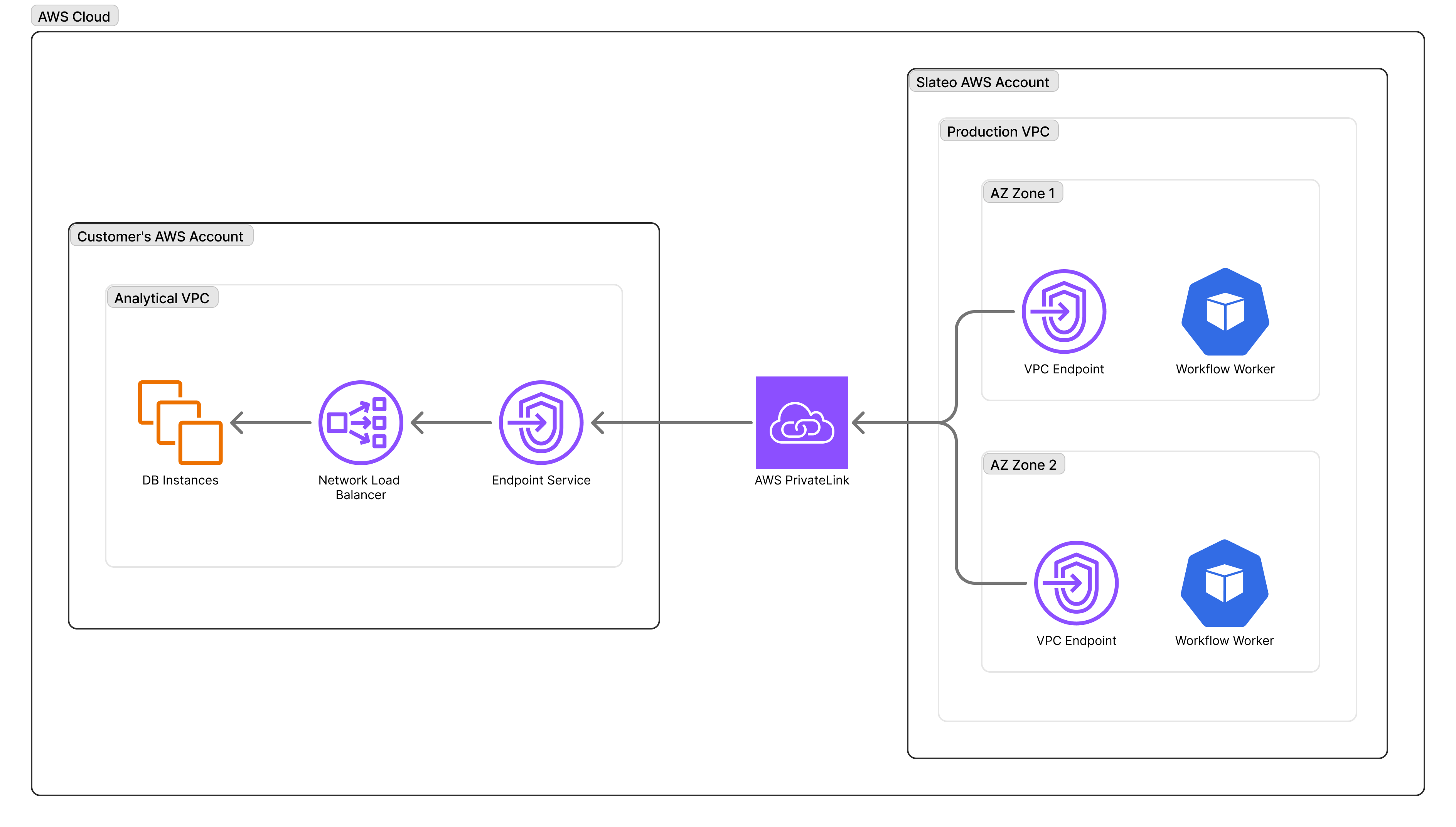
Key components:
- Your VPC: Contains your database or GitLab instance
- Network Load Balancer (NLB): Routes traffic to your target instances
- VPC Endpoint Service: Exposes the NLB to authorized AWS accounts
- Slateo VPC Endpoint: Connects to your endpoint service over AWS backbone
For more details, see What is AWS PrivateLink?
Prerequisites
Before setting up PrivateLink, ensure you have:
- An AWS account with a VPC containing your deployment
- Permissions to create Network Load Balancers and VPC Endpoint Services
- A Slateo organization (contact us to initiate the setup)
Additionally for databases: database nodes accessible within your VPC on the appropriate port (see port table above), and a database user with read-only permissions (created in Step 4).
Slateo operates in us-west-2 (Oregon). Cross-region PrivateLink is supported if your infrastructure is in a different region, though same-region connections offer lower latency. Contact your Slateo account manager to coordinate the setup.
Setup steps
The setup takes approximately 30-60 minutes and requires coordination between you and your Slateo account manager.
Step 1: Create a Network Load Balancer
Create an NLB that routes traffic to your database or service. This typically takes 2-5 minutes to provision.
- Open the EC2 Console → Load Balancers → Create Load Balancer
- Select Network Load Balancer (not Application Load Balancer—AWS PrivateLink only supports NLBs)
- Configure the load balancer:
- Name:
slateo-privatelink-nlb(or your preferred name) - Scheme: Internal
- IP address type: IPv4
- VPC: Select the VPC containing your database or service
- Subnets: Select subnets in at least two Availability Zones (required for cross-region PrivateLink)
- Name:
- Configure the target group:
- Target type: IP addresses
- Protocol: TCP
- Port:
3306(MySQL/MariaDB),9030(StarRocks), or4000(TiDB) - Health check protocol: TCP
- Health check port: Same as above
- Register your database nodes as targets
- Create the load balancer and wait for it to become Active (typically 2-5 minutes)
Cross-region requires 2+ AZs. If your infrastructure is outside us-west-2, your NLB must span at least two Availability Zones. AWS will reject the endpoint service configuration otherwise. If your service only runs in a single AZ, select a second subnet in a different AZ and enable cross-zone load balancing on the NLB.
Step 2: Create a VPC Endpoint Service
Create an endpoint service backed by your NLB.
AWS Endpoint Service documentation →
- Open the VPC Console → Endpoint Services → Create Endpoint Service
- Configure the service:
- Name:
slateo-endpoint-service(or your preferred name) - Load balancer type: Network
- Available load balancers: Select the NLB created in Step 1
- Name:
- Under Additional settings:
- Acceptance required: Enable to manually approve connection requests (recommended for security)
- Supported Regions (for cross-region): If your infrastructure is not in
us-west-2, click Add supported Region and addus-west-2to allow Slateo to connect. Cross-region PrivateLink documentation →
- Create the endpoint service
- Note the Service name (format:
com.amazonaws.vpce.<region>.vpce-svc-<id>)—you'll share this with Slateo
Cross-region checklist
- If your service is outside
us-west-2, addus-west-2under Supported Regions. - Your NLB must span at least two Availability Zones.
- A GitLab PrivateLink connection can be separate from any existing Redshift PrivateLink connection. They do not conflict.
- Share both the endpoint service name and the AWS region with Slateo.
Step 3: Allowlist Slateo's AWS account
Grant Slateo permission to create an endpoint connection to your service.
Managing permissions documentation →
- In the VPC Console → Endpoint Services, select your endpoint service
- Go to the Allow principals tab
- Click Allow principals
- Add the following ARN:
arn:aws:iam::880265510198:root
- Save the changes
This ARN allows Slateo's production AWS account to create VPC endpoints that connect to your service. Slateo cannot access any other resources in your account.
Step 4: Create credentials
Create a dedicated user for Slateo with read-only permissions.
-- Create the user
CREATE USER 'slateo_readonly'@'%' IDENTIFIED BY '<secure-password>';

-- Grant read-only access to specific databases
GRANT SELECT ON <database_name>.* TO 'slateo_readonly'@'%';

-- (StarRocks only) Optional: Grant access to statistics tables for enhanced query optimization
-- This allows Slateo to read column cardinality, null counts, and min/max values
GRANT SELECT ON _statistics_.* TO 'slateo_readonly'@'%';

-- Verify the grants
SHOW GRANTS FOR 'slateo_readonly'@'%';
Test connection locally:
mysql -h <nlb-dns-name> -P <port> -u slateo_readonly -p
Step 5: Share endpoint details with Slateo
Provide the following information to your Slateo account manager:
| Information | Example |
|---|---|
| VPC Endpoint Service name | com.amazonaws.vpce.us-east-1.vpce-svc-abc123 |
| AWS Region | us-east-1 |
| Database type | MySQL |
That's all Slateo needs to set up the PrivateLink connection on our side.
Do not share your credentials. You will enter them directly in the Slateo admin panel in Step 7.
Slateo typically creates the VPC endpoint within 1 business day. You'll receive a notification when it's ready for acceptance.
Step 6: Accept the connection request
After Slateo creates the VPC endpoint (you'll receive a notification):
- Go to VPC Console → Endpoint Services → select your service → Endpoint Connections
- Find the pending connection request from Slateo (principal:
arn:aws:iam::880265510198:root) - Select the connection and click Accept endpoint connection request
- Wait for the endpoint status to change to Available (typically 1-2 minutes)
Accept or reject connection requests documentation →
Slateo will provide you with the VPC Endpoint DNS name once the connection is available. This DNS name is required for the next step.
Step 7: Configure the connection in Slateo
Once you receive the VPC Endpoint DNS name from Slateo, configure the connection in the admin panel.
- Navigate to Admin → Databases → Add Database
- Select your database type (MySQL)
- Enter the connection details:
| Field | Value |
|---|---|
| Name | A descriptive name for this connection |
| Connection String | mysql://slateo_readonly:<password>@<vpce-dns-name>:<port>/<database> |
Replace <password> with the password from Step 4, <vpce-dns-name> with the endpoint DNS provided by Slateo, <port> with 3306 (MySQL), 9030 (StarRocks), or 4000 (TiDB), and <database> with your database name.
- Click Test Connection to verify connectivity
- Click Add Connection to save
Security considerations
Network isolation
- Traffic between Slateo and your infrastructure never leaves the AWS network
- Your database or service is not exposed to the public internet
- You control which AWS accounts can connect via the allowlist
- VPC endpoint security groups provide additional access control
Credential management
Use strong, unique passwords for the Slateo database user. Grant only the minimum required permissions (SELECT on specific databases/tables). Rotate credentials periodically and update in the Slateo admin panel. Enable audit logging on your database to monitor query activity.
Monitoring
- Monitor NLB metrics for connection health and throughput (CloudWatch metrics for NLB)
- Review VPC Flow Logs for endpoint traffic patterns (VPC Flow Logs documentation)
- Set up CloudWatch alarms for unusual activity
Troubleshooting
Endpoint stuck in "pending acceptance"
If Slateo reports that the endpoint is pending:
- Check if Acceptance required is enabled on your endpoint service (it should be)
- Go to VPC Console → Endpoint Services → select your service → Endpoint Connections
- Accept the pending connection request from Slateo
Accept or reject connection requests documentation →
Connection timeouts
If connections are timing out:
- Verify the NLB health checks are passing in the EC2 Console → Target Groups
- Check that your target instances are healthy and accepting connections on the configured port
- Review security groups on the NLB and target instances to ensure the port is allowed
- Verify the NLB subnets have routes to the target instances
- For cross-region setups, confirm
us-west-2is in your endpoint service's Supported Regions
Authentication failures
If Slateo reports authentication errors:
- Verify the credentials were entered correctly in the admin panel
- Test the credentials locally:
mysql -h <nlb-dns-name> -P <port> -u slateo_readonly -p - Check that the user has the correct grants:
SHOW GRANTS FOR 'slateo_readonly'@'%'; - Ensure the user is allowed to connect from any host (use
'%'in the user definition)
Next steps
After completing all steps:
- Slateo verifies the PrivateLink connection is active
- Your database connection appears in the Slateo admin panel with a "Connected" status
- Slateo automatically scans your database schema to discover available tables (typically within 5 minutes)
- Navigate to your workspace to start analyzing your data
If schema discovery doesn't complete, check that the user has SELECT permissions on the target tables.
Contact your Slateo account manager if you have questions or need assistance with the setup.
FAQ
Can I use PrivateLink with databases in a different AWS region?
Yes, cross-region PrivateLink is supported. Your NLB must span at least two Availability Zones, and you must add us-west-2 to your endpoint service's supported regions. Contact your Slateo account manager to coordinate the setup.
What's the difference between this and the Redshift setup guide?
The Redshift setup guide is for Redshift RA3 or Serverless clusters using native Redshift-managed VPC endpoints. This guide is for self-hosted databases, DC2/DS2 Redshift clusters, and service providers like GitLab that require manual NLB configuration.
Can I use the same NLB for multiple databases?
No, each database or service should have its own NLB and VPC endpoint service. This provides better isolation and makes it easier to manage permissions and monitor traffic.
How much does PrivateLink cost?
AWS charges for PrivateLink based on the number of VPC endpoints and data transfer. See AWS PrivateLink pricing for details. The NLB also incurs standard load balancer charges.
Can I revoke Slateo's access at any time?
Yes, you can revoke access by removing Slateo's principal from your endpoint service's allowlist or by rejecting the endpoint connection. This will immediately disconnect Slateo from your service.